Modding Baldur's Gate in 2026: A Player's Guide to Doing It With AI
A longtime fan’s guide to fixing, upgrading, and modernizing a heavily modded install — using AI alongside the tools that have always worked.
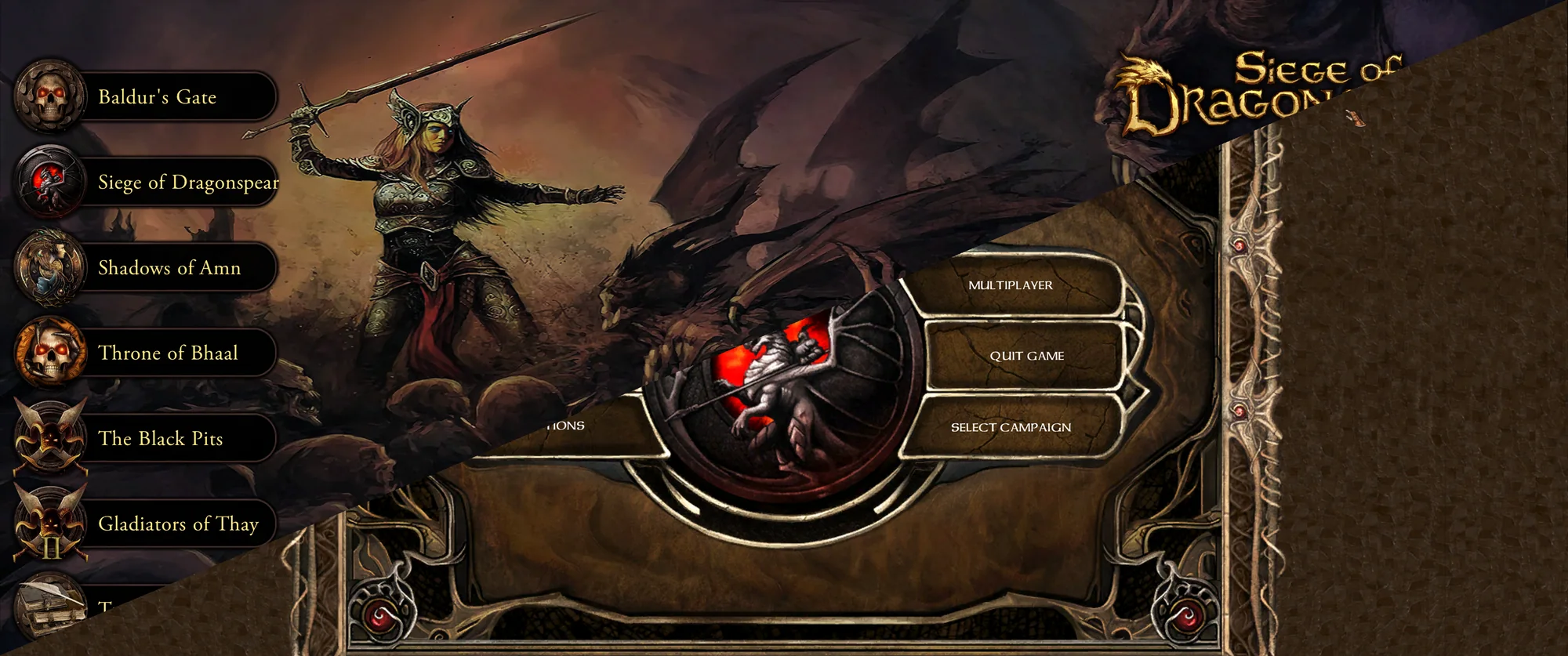
I bought Baldur’s Gate when it came out in 1998. I reviewed Baldur’s Gate II for this site when it released. I’ve been playing this series for nearly thirty years.
Modding it almost broke me in 2020. In 2026, AI turned a job I’d have called nearly impossible — upgrading from 2.5 EET to 2.6.6 EET with the EEX video mod — into two evenings of work.
Five years ago, I sat down to mod my Baldur’s Gate: Enhanced Edition Trilogy install on Beamdog’s version 2.5. I wanted what every long-time fan wants — the original game I love, but with modern conveniences, better graphics, and a UI that doesn’t fight my widescreen monitor.
It took weeks. Not because I’m bad at computers — I’m fine at computers. But the modding scene for Infinity Engine games is twenty years deep, fragmented across forums that haven’t been updated in five years, with documentation that’s almost always close to what you need but never quite right. I searched. I read. I tried things that broke things. I undid them. I tried again.
I finally got it working. I played it. I loved it. Then I closed it and didn’t touch the install for five years.
Last month I decided to update to version 2.6.6, the current Beamdog release at the time. I expected another multi-week ordeal.
It took me two days.
The difference wasn’t that I got better at modding. The difference was that I worked with an AI through the entire process. Specifically, I used Claude (Anthropic’s AI assistant) as a problem-solving collaborator, alongside the same tools the modding community has always used: Project Infinity for mod management, NearInfinity and EEKeeper for inspection and save-file editing, and Perplexity for searches that needed current information.
This isn’t an article about AI replacing the modding community. The opposite — every piece of knowledge the AI gave me came from work the modding community has been doing for two decades. What changed is that I no longer had to dig through eight forum threads to find one piece of information that didn’t quite apply to my situation. The AI did the digging. I did the playing.
If you’ve ever wanted to mod Baldur’s Gate but bounced off the complexity, this is for you.
Setting yourself up so you can’t lose
Before you do anything else, set up your folders so you can never permanently break your game. This single step is the difference between modding being scary and modding being safe to experiment with.
The core idea is simple: copying or moving game folders doesn’t break anything. A Baldur’s Gate install is just a folder of files. You can copy it, rename it, move it around, and as long as you eventually point a shortcut at the right spot, the game still works. This means you can have multiple complete copies sitting on your hard drive at the same time — one you’re playing, one as a backup, one as a vanilla baseline, one as a snapshot from before a risky change. They don’t interfere with each other.
That’s the whole trick. Set it up right and every risky step in this article has a one-click undo.
Here’s the structure I use.
The vault, which you don’t touch. Put a pristine copy of your vanilla game files somewhere completely outside your working folder. Mine is at D:\Games\BG - CLEAN (DO NOT CHANGE)\. This is your nuclear option — if everything else goes wrong, this is the file set you’d restore from. After you create this, you should never open this folder again unless you’re rebuilding from scratch. The name is in all caps and has “DO NOT CHANGE” in it for a reason. I want my future self to hesitate before doing anything in there.
The working clean copy. Inside your working folder (mine is D:\Games\BG-EET-26\), keep another copy of vanilla files, named clearly. I use BG2EE - Clean and BGEE - Clean. This is the starting point if you want to rebuild your modded install without going back to the vault.
The modded install. This is the version you actually play. Mine is BG2EE\ and BGEE\ inside the working folder. The mods get installed here. This is what your desktop shortcut should point at.
The known-good backup. After a successful mod install, mirror your modded folders to a backup. I call mine BG2EE-BASE-MODS-DONE and BGEE-BASE-MODS-DONE. This is your fast restore point. If you break something later, you don’t have to rebuild from vanilla. You restore from this.
Pre-change snapshots. Before any risky operation — adding new mods, updating game versions, anything that touches a lot of files — make ANOTHER backup with a timestamped name like BG2EE-PRE-QOL-20260525-1724. These are temporary safety nets you can delete once you confirm the new install is stable.
The old-version backup, which is the paranoid one. I also kept a complete backup of my old 2.5 game install when I migrated to 2.6.6. I wasn’t planning to use it. But I figured: I might accidentally delete something. The AI might accidentally suggest something that wipes it. Better to have a copy I can never accidentally touch than to wish I had one later. That paranoia paid off. When we were diagnosing the weapon proficiency mystery later, pointing EEKeeper at that backed-up 2.5 install was the move that broke open the diagnosis.
I know this sounds like a lot of folders. It is. But each one serves a specific purpose, and the labels matter because in six months you won’t remember what backup2 was supposed to be.
One habit that costs nothing and pays enormous dividends: put a README.txt in each backup folder with one or two sentences describing what it is and when it was made. Something like “Vanilla BG2EE 2.6.6 from GOG, created 2026-05-22, never modified.” Future you will thank present you.
Your save files live somewhere completely different from your game install. On Windows, modded BG:EET saves are at Documents\Baldur's Gate - Enhanced Edition Trilogy\save\. Each save is a folder named something like 000000132-17-0 Starts upgrade to 2-6-6-p EET Modded.
Before any major modding work, copy your entire saves folder to a backup with a clear name. I keep a folder called Baldur's Gate - Enhanced Edition Trilogy - 2.5 pre 2.6.6 backup right next to the main saves folder. If something corrupts a save during modding — and it can happen — you can restore individual saves from this backup without losing everything.
For specific saves you’re about to test risky changes on, also copy that one save into a sub-backup. When I started working on weapon proficiencies for save 135, I made a copy named 000000136-17-02-QOL PRE-PROF-FIX-20260525-1339 before I touched anything. One-click rollback for that specific save.
If there’s one rule here, it’s that clear naming beats clever organization. If a folder name doesn’t tell you what’s inside and when it was made, add a README, rename it, or both. You will come back to this stuff six months later with no memory of what you were doing, and you will be grateful for any context your past self left behind.
The toolkit
Modding Baldur’s Gate isn’t a single tool. It’s a small constellation of tools that work together, each doing one job well. AI assistance becomes useful precisely because it sits alongside these tools and helps you coordinate them.
Project Infinity is your mod manager. It handles WeiDU (the underlying script language that mods are written in) and gives you a graphical interface to choose mods, set install order, and run installations. Get it from https://github.com/ALIENQuake/ProjectInfinity.
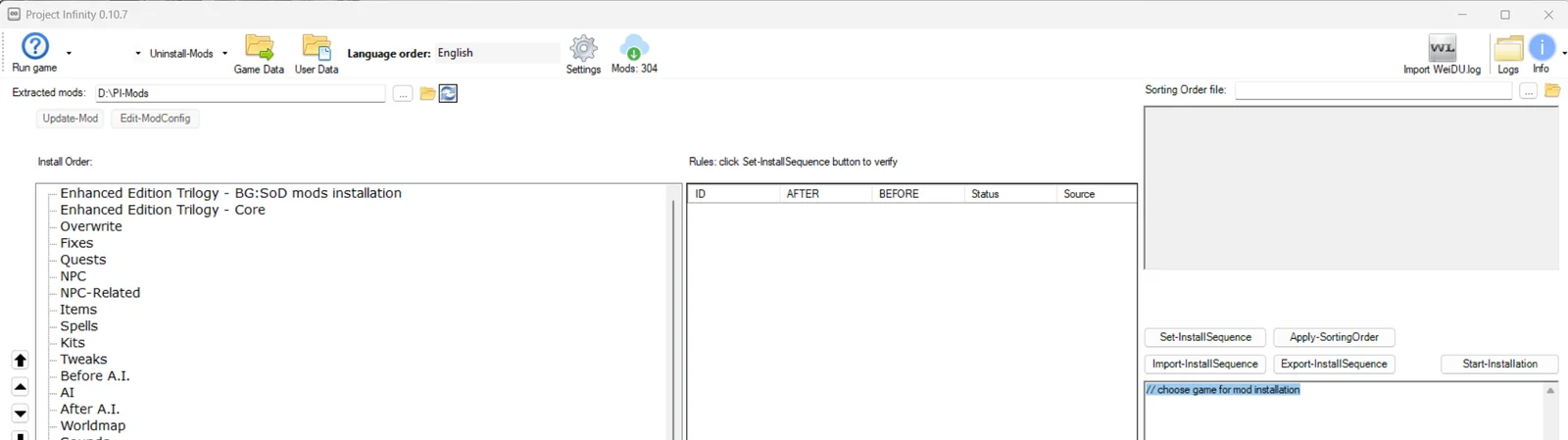
I’ll be honest about Project Infinity: it’s a piece of crap in many ways, but it does the one thing I needed it to do well. It reads your mod folder, shows you every mod available, and lets you understand what each component does before you check the box. With AI help explaining what each option meant and what the impact of including or excluding it would be, I could make informed decisions about a 280-component install instead of just clicking “install everything” and hoping.
What PI is good at: reading mods, exposing components, providing a reasonable initial install order, running WeiDU without you having to learn command-line syntax.
What PI is bad at: the install order it produces is often wrong. Mods fail in ways PI doesn’t predict. The interface is clunky, the documentation is sparse, and if something goes sideways mid-install, PI doesn’t help you recover. That’s where AI and the other tools come in.
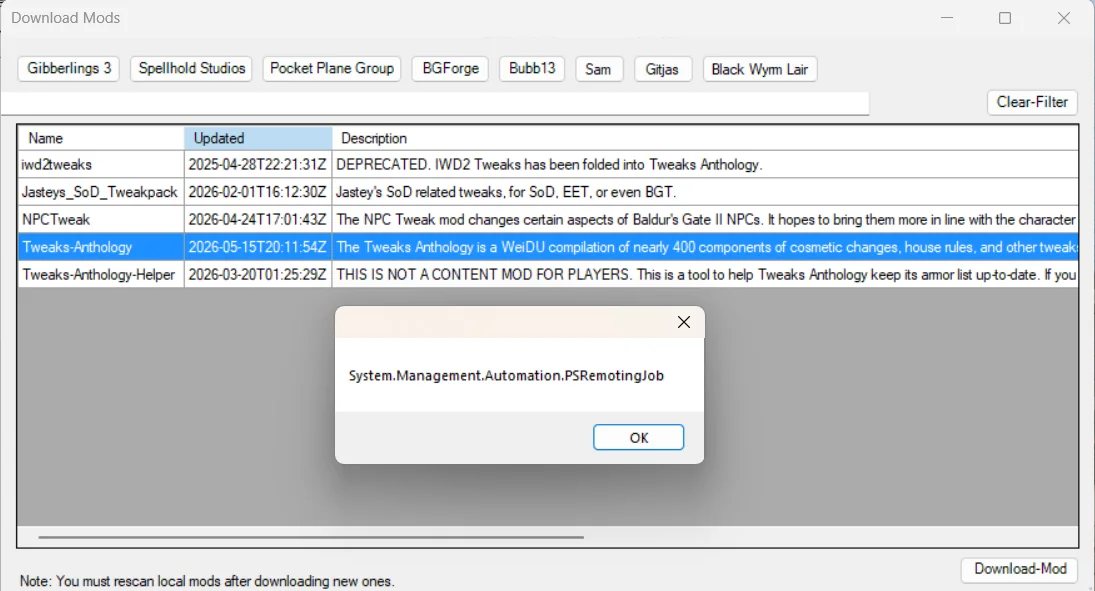
But for the one job it does well — turning “install these 280 mod components” into a checkbox interface — it’s irreplaceable. There’s no better alternative.
WeiDU is the script engine that installs mods. You’ll see the name constantly. You don’t usually run it directly; Project Infinity does. But every mod ships with a setup-modname.exe file, and that’s WeiDU under another name. The key thing to understand: WeiDU mods install by patching your game files and LOG every change in a file called WeiDU.log in your game folder. That log is the canonical record of what’s installed. If you ever want to know exactly what state your game is in, read that file.
NearInfinity is the inspection tool. When something’s wrong and you don’t know why, NearInfinity opens up the game’s internal files — items, creatures, areas, data tables — so you can see what’s actually in them. Get it from https://github.com/Argent77/NearInfinity/releases. For my situation, NearInfinity was essential for understanding why my characters had wrong weapon proficiencies — it let me see the actual byte values in the save files and the underlying tables the game reads from.
EEKeeper is the save file editor. When you need to change a character’s proficiencies, stats, inventory, or class info, EEKeeper does it through a graphical interface. Available at https://www.shsforums.net/files/file/521-ee-keeper/. It’s the player-friendly cousin of NearInfinity — where NearInfinity lets you see everything, EEKeeper lets you change specific things safely.
Perplexity is an AI-powered search engine that aggregates current information from across the web. I used it to verify current mod versions, check compatibility lists, and find recent forum discussions about specific issues. Free tier is fine for this kind of work. Available at https://www.perplexity.ai.
Claude (the AI) is the reasoning partner. The big thing AI brings that the other tools don’t: it can read symptoms and suggest where to look. If I describe “my cleric has a Battle Axe proficiency but clerics can’t use battle axes,” Claude can reason about whether that’s a save corruption, a data-file mismatch, a mod conflict, or a game version change — and tell me which tool to use to verify each possibility.
The crucial thing to understand is that the AI doesn’t replace any of the other tools. It coordinates their use. It tells you “open this file in NearInfinity and look for X” or “in EEKeeper, navigate to the Weapon Proficiencies tab and check Y.” The other tools do the actual file work. The AI does the reasoning.

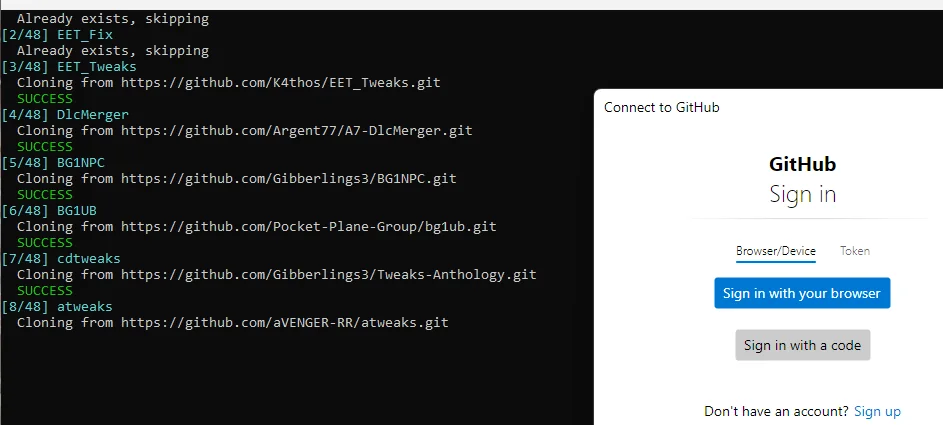
A quick word on GitHub, because most current Infinity Engine mods are hosted there and many readers will find the interface intimidating.
GitHub is a website where developers host their code and release builds. When you go to a mod’s GitHub page — for example, github.com/Bubb13/EEex — you’ll see a list of files. Don’t download from the main file listing. That’s the source code, not the mod.
Instead, look for a “Releases” link in the right sidebar or under the Code tab. The Releases page is where the mod author posts finished builds for users. The most recent release is at the top, usually labeled “Latest.”
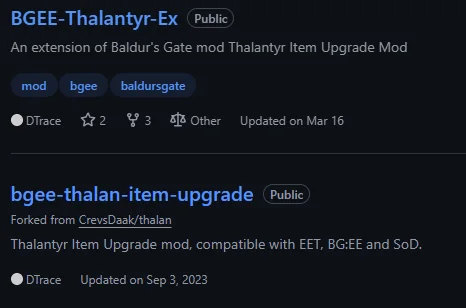
Under each release, there’s an Assets section. That’s what you actually download. You’ll usually see one of two formats. A .zip file (preferred when available) is just extract-and-go — the folder inside is the mod folder you place in your game directory. A .exe installer is a self-extracting WeiDU installer. You can run it directly, in which case it’ll ask where your game is and try to install. But for Project Infinity workflows, you typically want the mod folder, not the installer. The cleanest move is to run the .exe with the option to extract only (most WeiDU installers support this), or run it once in a temporary folder and grab the mod folder it created.
If a download is a .rar file instead of a .zip, you’ll need 7-Zip or WinRAR to extract it. 7-Zip is free at https://www.7-zip.org/.
I won’t lie: GitHub is intimidating the first time. The interface is built for developers, not mod users. But once you’ve downloaded a release or two, it stops being confusing.
A word about Windows Defender
This deserves its own section because it will probably bite you, and the advice you’ll find in older forum posts no longer works.
Some mods — particularly engine extenders like EEex, and certain installers — trigger Windows Defender false positives. The underlying reason is that these mods do things antivirus software is built to be suspicious of: injecting code into the game executable, modifying files in unusual patterns, or running as self-extracting installers that aren’t digitally signed. From Defender’s perspective, this looks like malware. From your perspective, it’s a working mod that Microsoft’s antivirus might quarantine without telling you.
The standard advice in forum threads from 2020 or earlier goes something like: open PowerShell as Administrator and run Set-MpPreference -DisableRealtimeMonitoring $true before installing mods, then re-enable after.
That advice no longer works on modern Windows 10 and Windows 11 installs. Microsoft introduced a feature called Tamper Protection that specifically prevents programmatic changes to Defender’s settings — even from an Administrator PowerShell session. The command runs without error, reports success, but doesn’t actually change anything. I found this out the hard way during my EEex install: I ran the disable command, PowerShell told me it worked, and Defender was still happily monitoring everything in real time.
The reliable workaround in 2026 is to use the GUI. Open Settings, then Privacy & security, then Windows Security, then Virus & threat protection. Under “Virus & threat protection settings,” click “Manage settings.” From there you can either turn off Real-time protection temporarily, or — better — add an exclusion under Exclusions, “Add or remove exclusions.” Add your modded game folder as an exclusion (for example, D:\Games\BG-EET-26\BG2EE\). While you’re there, consider adding the specific executables that might get flagged later. For me, that was InfinityLoader.exe and its associated .dll files in the game folder.
The GUI works because it’s a user action, not a programmatic change. Tamper Protection allows it.
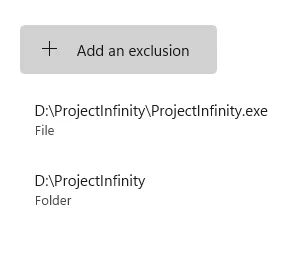
A few things I picked up. Adding a folder exclusion is generally safer than disabling real-time protection entirely — you’re only telling Defender “don’t scan files in THIS folder,” not “stop protecting my whole computer.” You’ll need to re-add exclusions if you ever rebuild your install in a different folder location; Defender exclusions are path-specific. And if a mod install fails mysteriously — files seem to install, then disappear; the installer reports success but the game doesn’t recognize the mod — check Defender’s Protection history in the same Windows Security panel. Quarantined files show up there. You can restore them, then add the exclusion before retrying.
Some users disable Defender entirely by installing a third-party antivirus or running with Tamper Protection off long term. I don’t recommend this. The exclusion approach is enough for modding purposes and doesn’t compromise your general security.
I lost about twenty minutes to this during my install — running the old PowerShell command, watching it report success, watching it not actually do anything, and then finally figuring out via the AI that Tamper Protection had changed the game. If I’d known to use the GUI approach from the start, I’d have skipped the detour entirely.
This is exactly the kind of problem where forum advice from five years ago is still floating around and still ranking on Google, but no longer applies to current Windows. AI was the thing that connected “your old command isn’t working” to “Microsoft added Tamper Protection in a Windows update years ago, here’s the current workaround.” That’s a problem the modding community knows about now, but the knowledge is scattered and hard to find unless you know what to search for.
The dialog.tlk corruption
Let me show you what working with AI looks like in practice. I’ll start with the smallest problem I hit, which is also the easiest to explain and the most embarrassing.
I caused this one myself. I accidentally clicked “Verify / Update” in GOG Galaxy on my BG2EE install. I wasn’t paying attention; I thought I was clicking a different button. Galaxy dutifully scanned my game files, decided that the modded dialog.tlk file (the game’s text database) was “different from the official version,” and silently replaced it with the vanilla version.
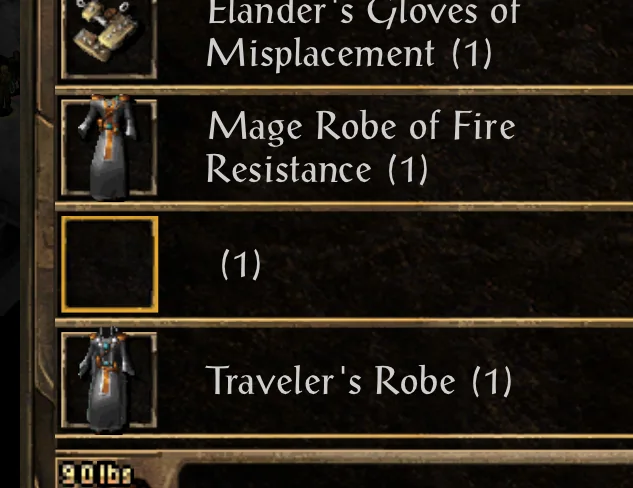
I didn’t realize what I’d done immediately. I launched the game and the text was wrong. Item names had reverted. Quest descriptions were in vanilla form, not the modded versions I’d installed. Spell descriptions were back to default. Something had broken between my last play session and this one — but I hadn’t intentionally changed anything, so I couldn’t think what.
If I’d been searching forums for this in 2020, I’d have spent probably four hours bouncing between threads about “missing mod text” and “tlk file corruption” and “Beamdog patch broke my install.” The advice would have been close to what I needed but not quite.
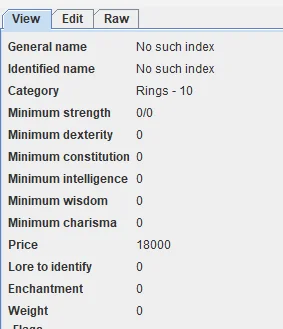
Instead, I described the symptoms to Claude. Within two messages, it told me to check dialog.tlk (the game’s text database file). It told me where the file lives (lang\en_US\dialog.tlk in the game folder). It told me what to expect — a modded install should have hundreds of thousands of strings, and I could verify by looking at the file’s binary header.
I checked. My modded install had been showing 330,924 strings the day before. Now it showed 103,584. The file had been replaced with the vanilla version, about a third the size.
Once we knew what file was wrong, the cause clicked into place. GOG Galaxy’s Verify feature treats modded files as corruption and replaces them. I had clicked the wrong button. My fault, but a fault I’d never have diagnosed quickly without AI help — the symptoms (random text being wrong throughout the game) didn’t obviously point at a single file.
The fix took less than a minute. I restored dialog.tlk from my known-good backup folder. Then I set the file to read-only so Galaxy couldn’t touch it again even if I made the same mistake. Done.
Two minutes with AI, versus four hours of forum searching the old way. The AI didn’t know anything a human modder doesn’t; people have been writing about this exact problem for years. It just got me to that knowledge faster.
This is the kind of question AI is genuinely great at: which file in a giant directory tree is causing one specific symptom. Needle in a haystack. It’s fast at those.
Migrating from 2.5 to 2.6.6
This was the meat of the project — moving a heavily modded BG:EET install from game version 2.5 to 2.6.6, preserving the mods that worked, and ending up with something playable.
Here’s the thing about Beamdog’s version updates: they aren’t drop-in compatible with old modded installs. Some files change between versions. Some mods that worked on 2.5 don’t work on 2.6.6. Some need updated versions. And once you point your saves at the new game data, certain things behave differently — more on that in the next section.
The plan Claude and I worked out together: instead of trying to upgrade my existing 2.5 modded install in place, which is fragile and prone to half-states, we’d start from a fresh vanilla 2.6.6 install and rebuild the mod stack on top of it. The old 2.5 install stays intact as a reference; the new 2.6.6 install becomes my playable game.
The high-level workflow was roughly seven steps.
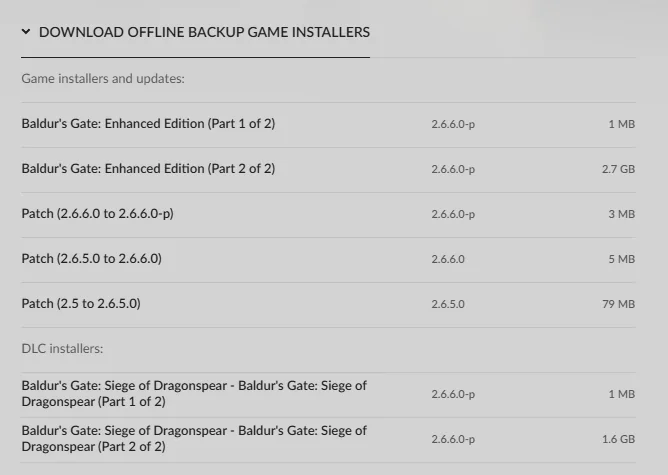
First, install vanilla 2.6.6 from GOG into a new folder. Make immediate backups per the folder-structure principles above — the pristine vault copy, the working clean copy, the future modded copy.
Second, take inventory of what mods were on the 2.5 install. The WeiDU.log file in the modded 2.5 game folder is the canonical list — every component of every mod is logged there. We exported that list as the target state we wanted to recreate on 2.6.6.
Third, use Project Infinity to plan the install order on 2.6.6. This is where PI shines. Drop your mod files into PI’s downloads folder, point it at the new 2.6.6 game, and it reads each mod’s .tp2 file (the install script) to understand the components, dependencies, and recommended order.
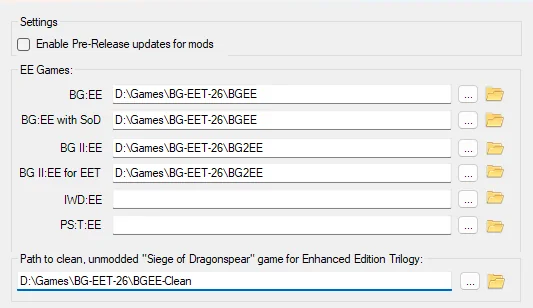
With Claude’s help explaining what each component did, I could walk through 280 components and make informed yes/no decisions on each one instead of hitting “install everything” and hoping.
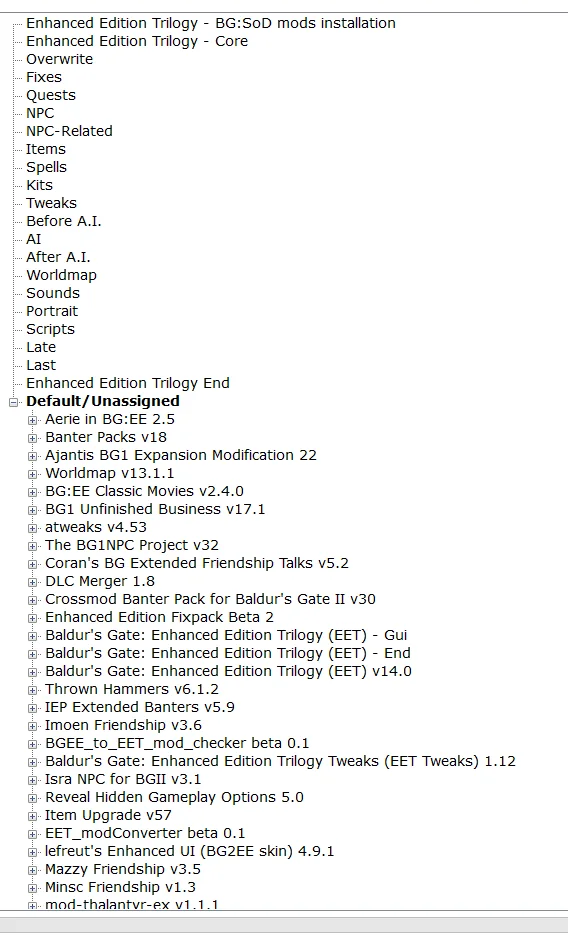
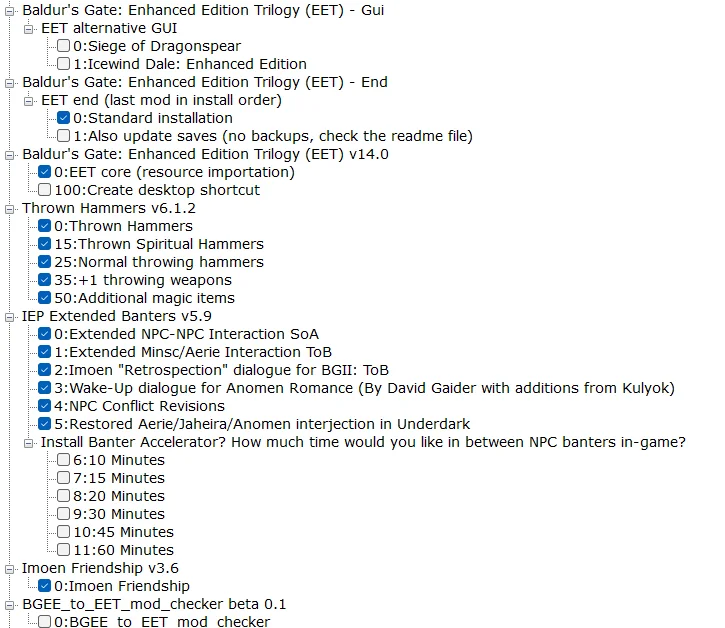
Fourth, export PI’s proposed install order and review it. This is where PI is bad. It produces an initial order based on internal heuristics, but the order is frequently wrong — it’ll try to install Mod B before Mod A even though Mod A has to go first. Claude reviewed the exported order, cross-referenced it against mod dependencies that I knew about (from the 2.5 install) and that we’d looked up via Perplexity, and we adjusted the order before running anything.
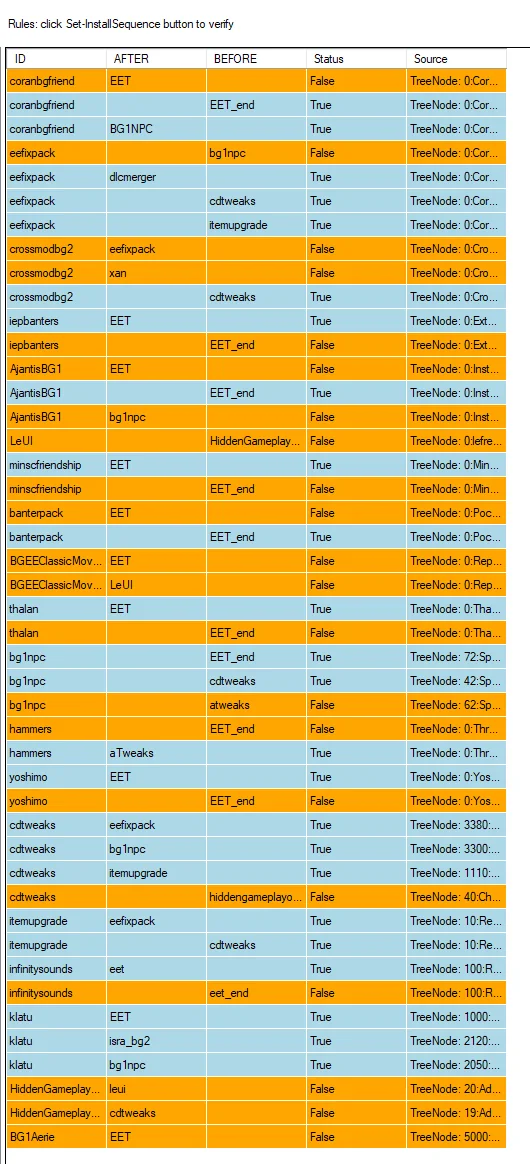
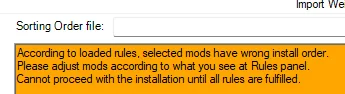
Fifth, run the install. With the corrected order, we kicked off PI’s automated install. Most components installed cleanly. Some failed. Each failure became its own micro-problem to solve.
Sixth, handle the failures. PI doesn’t help you when things go wrong mid-install. It just stops.
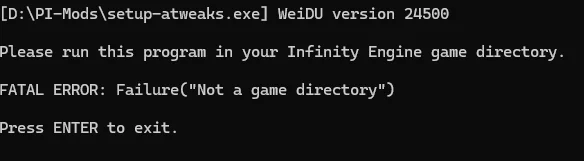
Seventh, verify the modded 2.6.6 install was playable. Launch the game, load a save, walk around, check that mods were actually working. Then take the known-good backup snapshot.
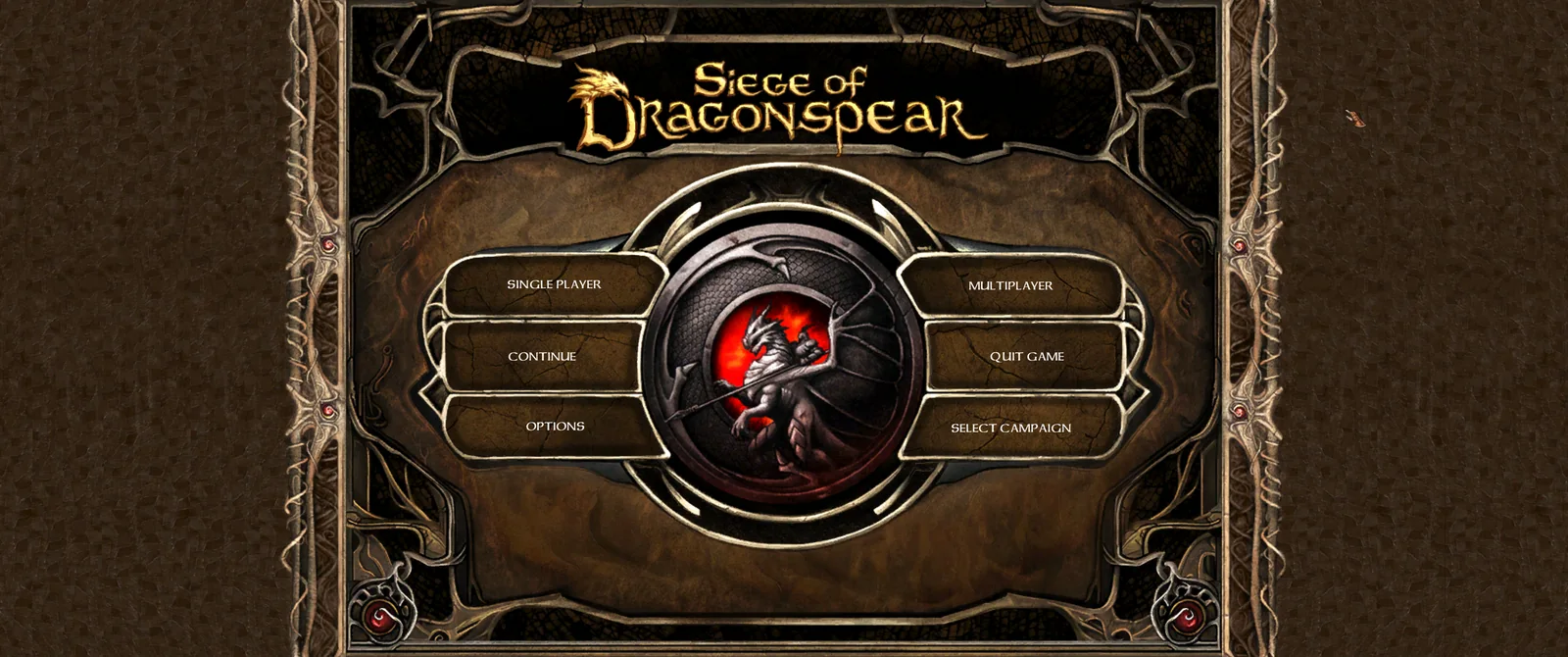
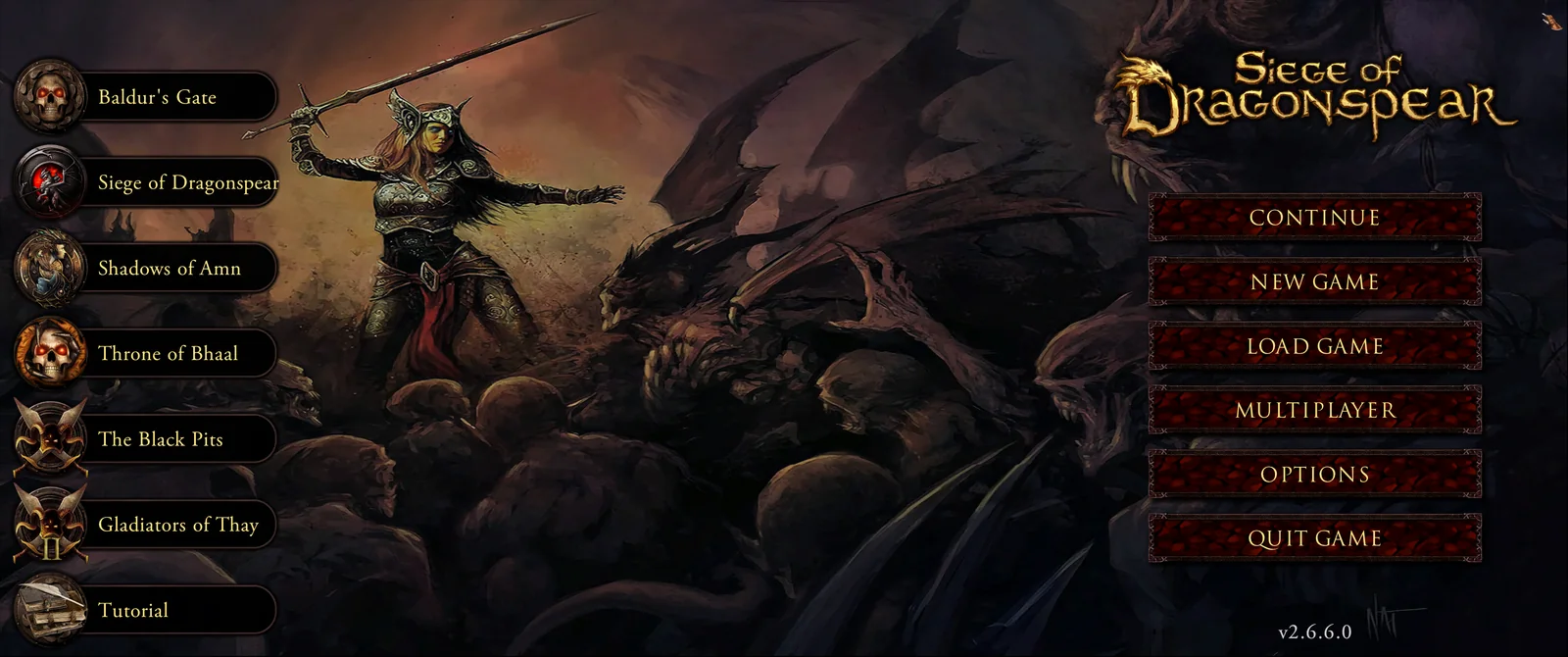
Two things complicated this more than I expected.
The first is EET itself — the Enhanced Edition Trilogy mega-mod that lets you play BG1 → SoD → BG2 → ToB as one continuous campaign. It involves modifying THREE game installs (BGEE, BG2EE, SoD content) and merging them together. When you do a version migration like 2.5 → 2.6.6, you’re not just upgrading one game. You’re upgrading the EET chain. Each game needs its own mod order figured out, with EET sitting in the middle as the integration layer.
A few things about EET installs I learned the hard way, so you don’t have to. The DLC Merger (which folds Siege of Dragonspear DLC into base BG:EE) has to be installed on BG:EE before anything else — BG1 Unfinished Business will refuse to install without it, throwing errors that don’t obviously point at DLC Merger as the cause. EET itself takes 20 to 30 minutes to actually run its core install; if your PI install finishes in 17 minutes total, EET didn’t run and you’re going to have a bad time. Project Infinity’s “Clean unmodded SoD path” field is misleading — that folder gets written to during install, so point it at your working folder, not your real backup. And PI’s WeiDU.log import can get confused by stale logs from previous runs; wipe PI\Logs\ before restarting a failed install.
If you skip EET and just want to mod one game at a time, your job is simpler than mine was.
The second complication is that saves don’t migrate cleanly across game versions. This was the surprise that became the next section. The mod stack I rebuilt on 2.6.6 was functionally equivalent to what I had on 2.5. But my saves — which were created on 2.5 — didn’t render correctly on 2.6.6 even with the equivalent mod stack. That’s a Beamdog change, not a mod problem.
One more thing: if you’re starting fresh on 2.6.6 with no existing saves, you skip most of the problems I had. You can install 2.6.6 vanilla, add your mods, start a new character, and never hit the save migration issues. The 2.5 → 2.6.6 difficulty is specifically about preserving an existing playthrough, not about modding the game from scratch.
PI got the install mechanically working. Claude got me through the failures, helped me understand the mod order, and helped me decide what to skip versus fix. Together they did a job that, in 2020, would have cost me a week of forum reading. This time it took two evenings.
If AI earned its keep anywhere here, it was this: planning a long chain of steps, then reacting when one of them blew up. “That failed, now what” is a question it answers well.
The proficiency mystery
This was the hardest problem I hit, and the clearest example of what AI-assisted modding can do that solo modding can’t.
After getting the 2.6.6 modded install working and loading a save from my 2.5 playthrough, I noticed something strange. My cleric, Branwen, had a Battle Axe proficiency. Clerics can’t use battle axes. Other characters had weapons in their proficiency lists they shouldn’t have known how to use.
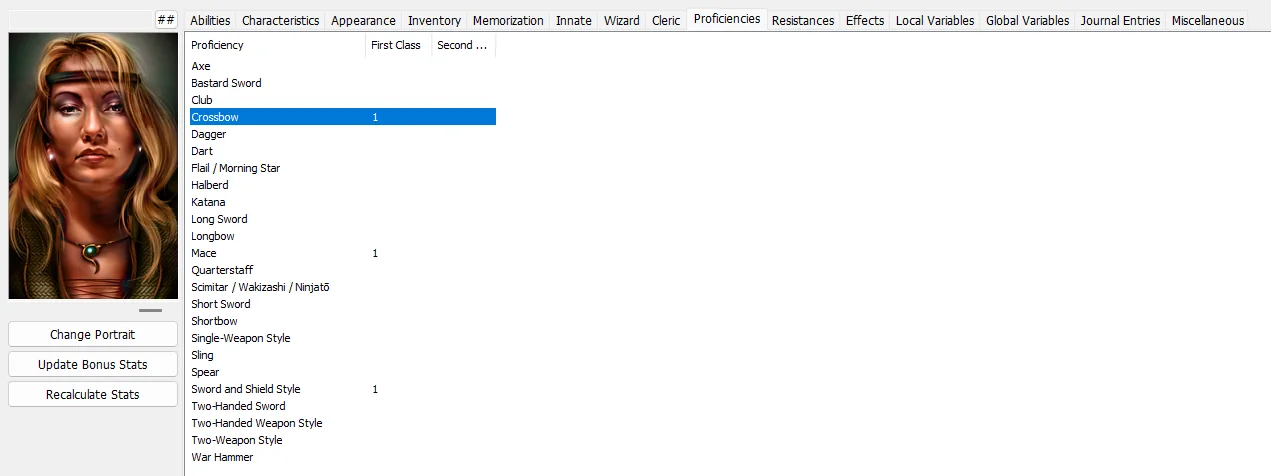
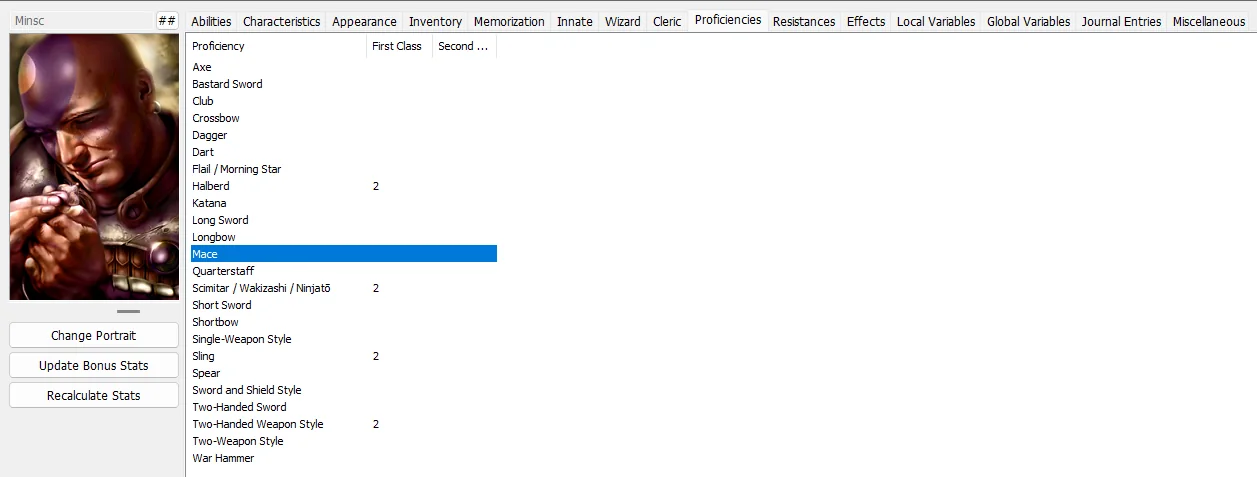
First instinct: the install I’d just done broke something. That’s where I would have spent the next several days if I’d been solo, trying to identify which mod was the culprit, possibly uninstalling and reinstalling, chasing the wrong problem the entire time.
I described the symptoms to Claude. The diagnostic process it proposed was systematic.
First, check whether any of the mods I’d installed touched the weapon proficiency data file (weapprof.2da). They hadn’t. The file was byte-identical in the modded folder and the backup from before this work. So none of the recent install activity was responsible.
Second, check whether the issue existed in OLDER saves from earlier in the playthrough. It did. So the problem predated all of the recent work.
Third — and this is where the pattern recognition mattered — Claude noted that I’d recently migrated from BG2 version 2.5 to 2.6.6. It suggested that Beamdog might have changed the proficiency data file between game versions, and the symptom I was seeing would be exactly what that kind of change looked like on saves created under the old version.
I checked. The 2.5 game install (which I still had backed up, per Section 1 about paranoid backups) had a weapprof.2da of 82,018 bytes. The 2.6.6 game install had a weapprof.2da of 65,658 bytes. Same file name, completely different content.
The smoking gun: I opened my save file in EEKeeper while pointing it at the 2.5 game data. Proficiencies showed up correctly. I opened the same save while pointing at the 2.6.6 game data. Proficiencies were wrong. The save file hadn’t changed. The interpretation had.
Here’s what Beamdog did between 2.5 and 2.6: they consolidated the granular weapon proficiencies (Bastard Sword, Long Sword, Two-Handed Sword as separate proficiencies) into broader categories (everything becomes “Large Sword”). The numbering was reassigned. Old saves that referenced “5 stars in proficiency ID 89” still pointed to ID 89, but ID 89 used to be Bastard Sword and is now UNUSED.
This is a documented Beamdog change. The mod community knew about it. But the change is buried in patch notes from years ago, and almost no one writing about modded installs in 2026 mentions it because they assume you knew. I didn’t know. I’d been seeing the wrong proficiencies on my characters since the version migration and just hadn’t looked carefully.
The fix was mechanical once we understood it: rebuild each character’s proficiencies using the 2.6.6 numbering. We used EEKeeper to directly assign correct proficiency values byte-by-byte. For most characters it was straightforward.
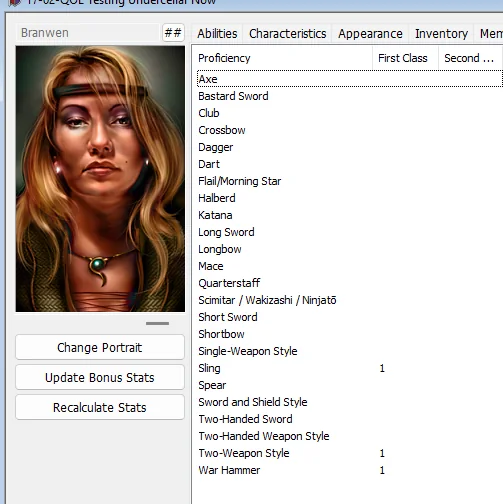
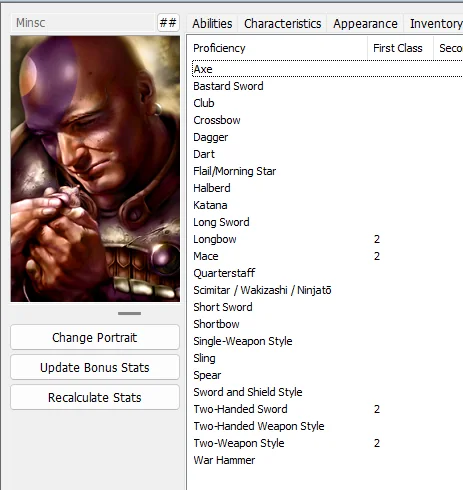
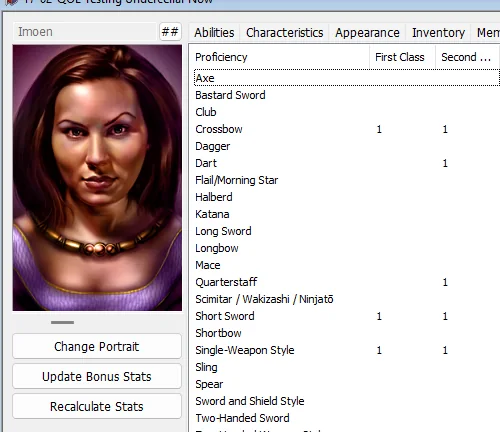
For Imoen, who’s dual-classed Thief to Mage, it wasn’t. EEKeeper’s proficiency interface only shows proficiencies allowed by the character’s currently-active class. For a dual-class character, that’s the second class — Mage, in Imoen’s case. But her original Thief-class proficiencies also needed to be reassigned, and EEKeeper wouldn’t let me see them because Thief wasn’t her active class. We used a level-swap workaround: temporarily reduce Imoen’s Mage level below her Thief level so the interface would show Thief proficiencies, assign them correctly, then restore her Mage level. Ugly, but it worked, and the AI figured out the workaround in about two exchanges once I described what the interface was doing.
Without AI, I’m honestly not sure I would have figured this out. The symptoms looked exactly like a mod conflict from the install I’d just done. I’d have spent days investigating my recent work, chasing the wrong problem the entire time. The AI’s willingness to step back and ask “what changed BEFORE this work” is the move that broke open the diagnosis.
A side note: this whole section is why having the backed-up 2.5 install paid off. If I’d deleted that old install after migrating, I couldn’t have pointed EEKeeper at the 2.5 game data to confirm the diagnosis. The paranoia from the folder-structure section saved me here.
Left to myself, I’d have kept staring at the thing I’d just done. AI doesn’t have that reflex. Asking “what changed before this work?” when every symptom points at your most recent change — that’s the move that cracked it open.
How I worked with the AI
There are different ways to use an AI in a project like this, and they involve a real tradeoff between speed and visibility.
When I started, I worked the safe way. I’d describe a problem, the AI would suggest a PowerShell command to run, I’d copy that command, paste it into PowerShell on my machine, and report back what happened. Every command went through my eyes and my hands before it touched my system. If something looked wrong, I’d notice.
This was slow. Each diagnostic step took minutes — formulate the question, get the suggestion, copy-paste, run, copy results back, get the next suggestion. A complex problem could take an hour of back-and-forth that mostly consisted of moving text between two windows.
Partway through the project, I switched to a setup where Claude could run PowerShell commands directly on my machine. This used something called an MCP server — basically a connector that gives the AI the ability to execute commands and see results without me as the middleman.
The speed improvement was dramatic. What used to take ten minutes now took ten seconds. Multi-step diagnostics that would have taken an hour got done in minutes.
The cost: I no longer saw every command before it ran. I had to trust that the AI was doing reasonable things, and verify by checking results after the fact instead of approving each step. For most of what we did this was fine — the AI was reading files and running diagnostic queries that couldn’t really damage anything. But for the operations that DID modify files (mod installations, robocopy mirroring, deleting folders), I made sure to double-check what was being changed before I let it happen.
If I were starting over, I’d do it the same way. Copy-paste mode for the first hour while I built trust with how the AI worked. Then switch to direct execution for the bulk of the work. The risk-reward becomes much better once you have confidence the AI isn’t going to do something weird.
The one habit that made all of this safe: I made a backup before every significant operation. Folder copies are free on modern SSDs. Twelve seconds with robocopy gives you a complete rollback point. There’s no reason not to do this constantly.
What AI is and isn’t good at for this kind of work
After two days of intense AI-assisted modding, here’s my honest assessment of where AI helped most and where it struggled.
AI is fantastic at pattern matching from symptoms to causes. “My save shows X, what could be wrong?” gets useful answers in seconds, even for niche problems. It’s fast at reading file formats — the AI inspected CRE files, ITM files, 2DA tables, and TLK string databases throughout this project, and it knows these formats from the modding community’s collective documentation. It plans multi-step processes well; “I want to do X, what order should I do these subtasks in” produces solid plans because there are decades of “here’s how I did it” posts that the AI has learned from. It responds well to mistakes — when something failed, “okay, that didn’t work because Y, here’s what we should try” was reliably available. And it’s good at comparing options; when I was deciding between competing UI mods, the AI laid out feature comparisons fast.
AI also struggles, in a few specific ways.
Current mod versions are a problem. The AI’s knowledge has a cutoff date. For latest releases I always used Perplexity, which searches the live web, to verify version numbers before downloading anything. Trusting the AI on “what’s the latest version of X” is a good way to end up on an outdated build.
Runtime behavior is a limitation. The AI can’t see what I see in the game. If something looks wrong on screen but doesn’t show in the data files, the AI can only guess from my description — or from a screenshot, if I share one. Screenshots help. Descriptions alone often aren’t enough.
Niche mods can trip it up. For obscure mods with little documentation, the AI sometimes confabulates — invents plausible-sounding information that’s actually wrong. Always verify against the mod’s actual README or GitHub before acting on AI advice about a mod you’ve never heard of.
Anything requiring actually playing the game is off the table. The AI doesn’t know if a mod feels good in your hands. You have to play to find out.
So here’s the division of labor that worked for me. Use AI for planning, diagnosis, and file inspection. Use the modding tools (Project Infinity, NearInfinity, EEKeeper) for the actual file modifications. Use Perplexity for anything current. And use your own eyes and hands for testing, because nothing else will tell you whether the game feels right.
AI is a force multiplier on top of the modding community’s knowledge. It is not a replacement for the modding community, and it is not an oracle. Verify everything.
Where I am now
My modded BG:EET install runs on 2.6.6. It has an upgraded UI, improved maps, and visual quality-of-life mods that turn a 25-year-old game into something closer to a modern visual masterpiece on a big monitor. But that’s a post for another time — the specifics of the visual upgrade and QoL stack will be the next article in this series.
What took weeks five years ago took two days this time. The mod community didn’t get less helpful. The information didn’t get easier to find. What changed is the friction between “this knowledge exists somewhere” and “I can apply it to my specific situation right now.” AI collapsed that gap.
One last practical note: once you’ve finished the migration and confirmed your new modded install works, update your Start Menu shortcut and any desktop shortcuts to point at the new install location. If you’ve been running the game from a shortcut that points at the old game folder, you’ll still launch the old game even though you’ve built a perfect new one. Right-click the shortcut, edit the Target field, point it at the new install. This is a small step that’s easy to forget after the big work is done.
If you’ve been a Baldur’s Gate fan for years and have wanted to mod it but bounced off the complexity, this is the moment to try again. Get your folder structure set up. Install Project Infinity, NearInfinity, and EEKeeper. Open Claude or your AI of choice. Make backups before every step. Then go do the thing you’ve wanted to do for years.
I’ll be in the Sword Coast.
Atomm bought Baldur’s Gate in 1998 and reviewed Baldur’s Gate II for GamersRadio when it released.
Next in this series: I Killed Sarevok and the Game Ended, on how the EET hand-off into Siege of Dragonspear broke a 100-hour save and what it took to repair. Then The One Byte That Crashed Baldur’s Gate, on the crash that beat every standard technique until Process Monitor found it.
Still to come: the visual upgrade and quality-of-life mod stack I added on top of my 2.6.6 install. BGGO for graphics, Infinity UI++ for the modern UI, EEex and Bubb’s Spell Menu for engine features and caster ergonomics, and how AI helped me pick and install them.